Start MS library search manually from a spectrum
If you did not extract spectra and search the libraries during reprocessing:
Privileges
|
Prerequisites
|
-
Load your MS data.
NOTE
To use the library search with LC/MS data, create a custom library first.
Create an processing method that supports MS library search (see method configurations). In the Spectral Analysis > MS Library Search node of the method, select a library from the MS Library drop-down list. Click the + icon to add it to the method, and adjust the search parameters as required.
The status of the Automatically search TIC peaks check box is not relevant for the manual search. The peaks will be searched anyway.
-
In the Extraction > Spectrum node of the processing method, adjust the background subtraction as required.
-
Link the processing method to the relevant injection.
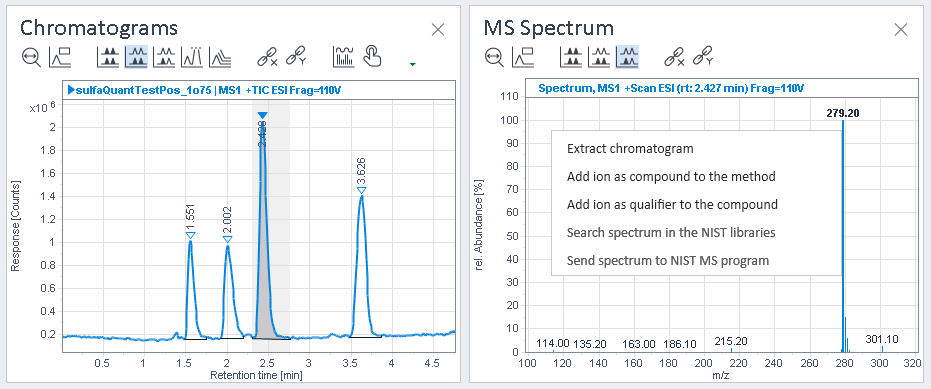
Select the relevant peak, and show the MS spectrum for this peak. If you did not automatically extract spectra, right-click the peak, then select Extract spectrum.
Right-click the MS Spectrum window, then select Search spectrum in the NIST libraries.
In the Chromatograms or Results layout, open the MS Lib Search Results window.
The MS Lib Search Results window shows matches found in the searched library. Click on a peak to select the corresponding results. In the right half of the window, the reference spectrum of the selected library search result is shown.
In the MS Spectrum window, the extracted spectra are shown. You can compare them with the reference spectra in the library search results. If you select a spectrum, the corresponding library search results will be shown in the MS Lib Search Results window.
base-id: 11017274763
id: 27021608781497739